 Podwobble
How to turn a podcast into a YouTube video
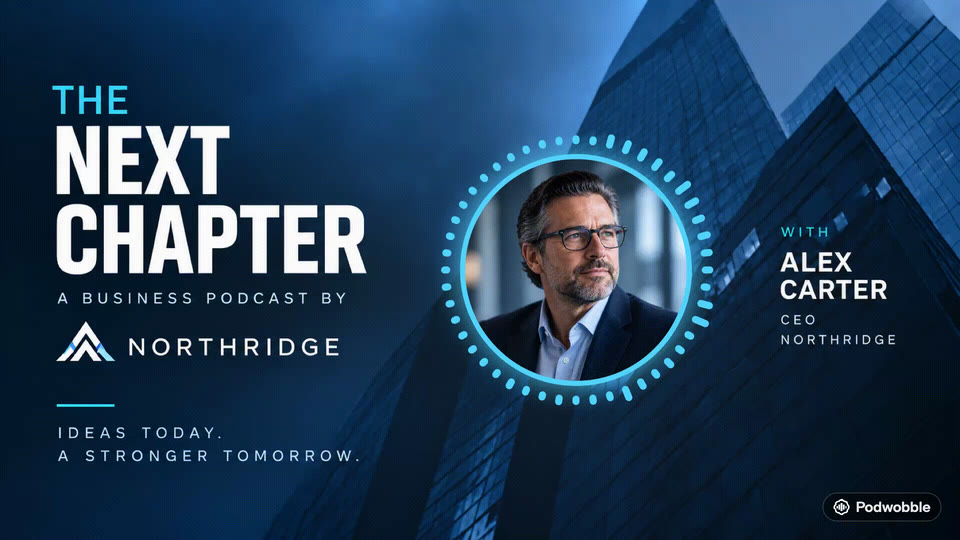
The short answer: you don’t need a camera. YouTube publishes podcasts as video, so pair the episode’s audio with visuals and export an MP4: a 16:9 frame with your artwork, a waveform that moves with each voice, and captions. Upload it in YouTube Studio, add it to a podcast playlist, and cut short vertical clips for Shorts.
YouTube wants video, and plenty of podcasts are audio only. This guide covers what YouTube actually asks for, the two routes it offers, and how to make the video on a Mac or Windows PC with Podwobble, the app I make for turning audio into video. The YouTube parts apply whichever tool you use.
What does YouTube need from a podcast?
A video file. YouTube’s own help page on podcasts is blunt about it: “MP3s can’t be turned into podcasts on YouTube.” Every episode has to be a video, even if the picture never changes.
Beyond that, the technical bar is low. YouTube’s recommended upload settings are an MP4 with H.264 video and AAC-LC audio, at the frame rate the video was made in (30fps is one of the common rates it lists), and 16:9 is the standard shape on a computer.
The one that catches people out is length. By default you can only upload videos up to 15 minutes long; anything longer needs a verified account, which takes a phone number and a code. Do it before episode day, not during the upload. After that the ceiling is 12 hours or 256 GB, whichever comes first.
Two ways to get an episode onto YouTube
YouTube describes two paths, and they suit different shows.
Connect your RSS feed
You give YouTube your podcast’s feed and it makes a video for each episode from your show art: a static image with the audio under it. New episodes arrive automatically. This is the least work, and for a big back catalogue it’s hard to beat. The limits, from YouTube’s help page: it’s only available in some countries, every episode looks the same, the back catalogue you first import arrives as private videos (new episodes follow a default visibility you choose), and the audio can’t be replaced once it’s published.
Upload a video you made
You render each episode as a video and upload it in YouTube Studio. More work per episode, but you decide what people see: the host who is talking, the episode title, captions, your colours. And the same design can give you vertical clips for Shorts.
You can mix them. Some shows let RSS handle the archive and make proper videos for new episodes. A video you make yourself can also go to Spotify; here’s how to turn an audio podcast into video for Spotify.
How to make the video on a Mac or Windows PC
Here is the upload route, start to finish, in Podwobble. The steps are the same on a Mac and on Windows. Nothing here needs a camera, an account or an internet connection until you reach YouTube.
- Bring in the whole episode. In Voices, import the final mix (MP3, WAV, M4A, FLAC, AIFF and Ogg all work) and give each host a photo, a name and a colour.
- Add the solo tracks if you have them. On a two-host show, adding each person’s own recording lets Podwobble work out who is talking when, so only the speaker’s waveform moves. Over a long conversation, that is the visual cue that tells viewers who is speaking. The solo tracks never appear in the video.
- Set the look once. In Look, pick a template or build a layout: the show title, a name plate for each host, a progress bar so viewers can see how far in they are, and your logo. Save it as a template and you can start every future episode from it.
- Transcribe the captions. In Captions, transcription runs on your computer, so the episode is never uploaded to anyone. With solo tracks, pick one under Transcribe from for a cleaner transcript. Transcription is English only; for other languages, bring your own file with Import SRT/VTT….
- Export the episode. In Export, choose the whole episode and tick 16:9. You get an H.264 MP4 at 30fps with the captions burned in, which matches the container, codec and one of the frame rates YouTube recommends.
If you’ve made short clips before, this is the same job at full length. My guide to turning a podcast clip into a video on a Mac goes deeper on choosing a waveform style and caption look. If you’re on Windows, the Windows announcement covers what you need to run it.
What to set when you upload
- Put it in a podcast playlist. In YouTube Studio, choose Create, then New podcast, or turn an existing playlist into one. YouTube asks for a square podcast thumbnail and recommends 1280 × 1280 pixels. Setting it up as a podcast is what makes the show eligible for YouTube Music and YouTube’s podcast pages.
- Keep the playlist to full episodes. YouTube’s discovery tips say the podcast should contain only full-length episodes, and to avoid mixing in clips or other shows. Use the show’s real name as the podcast title, without adding “podcast” unless it’s part of the name.
- Add chapters. Timestamps in the description become chapters if the first is 00:00, there are at least three in order, and each is at least 10 seconds long (YouTube’s rules). On an hour-long episode they are how people find the part they came for.
- Make a custom thumbnail. 16:9, JPG or PNG, at least 640 pixels wide, and your account has to be verified first. Show art on its own looks the same for every episode, so try the host’s photo with the episode’s topic in a few large words.
Turning the same episode into Shorts
The full episode is for people who already want the show. Shorts are one way new people come across it. YouTube Shorts can be up to three minutes long and must be square or vertical.
In Podwobble, set in and out points around a moment that stands on its own, tick 9:16 (and 1:1 or 4:5 if you post elsewhere too), and export. The design you set up for the episode carries over, so the clip is recognisably the same show.
One rule worth knowing before you go past a minute: YouTube blocks a Short that is over one minute long and has an active Content ID claim. If your theme music could draw a claim, keep it out of the clip or keep the clip under a minute. There’s more on picking the moment, uploading and linking each Short to its episode in how to make YouTube Shorts from a podcast.
| Full episode | Short | |
|---|---|---|
| Shape | 16:9 | 9:16 or 1:1 |
| Length | Whole episode (over 15 minutes needs a verified account) | Up to 3 minutes |
| Goes in the podcast playlist? | Yes | No |
Questions
Can I upload an MP3 to YouTube as a podcast?
No. YouTube only accepts video, so an audio file has to become a video first, either through RSS, where YouTube adds your show art, or by exporting a video yourself.
Is a static image good enough?
It works, and it’s exactly what the RSS route produces. Movement and captions give a viewer something to follow, which matters more the longer the episode runs and the more people are talking.
Why won’t YouTube let me upload my full episode?
Unverified accounts are limited to 15 minutes per video. Verify the account with a phone number and the limit rises to 12 hours.
Do I need to film the hosts?
No. A photo of each host, a moving waveform and captions make a watchable video without a camera, a studio or a video editor.
Which computers does Podwobble run on?
Macs with Apple silicon (M1 or later) running macOS 13 Ventura or later, and PCs with 64-bit Windows 10 or 11 on an Intel or AMD processor; Intel Macs and Windows on Arm aren’t supported. It’s free, with a small mark on exports; Pro removes it and adds 2K and 4K.
Turn your next episode into a YouTube video. Podwobble is free for Mac and Windows, with a small mark on exports.
Written with the help of AI, from my notes on how Podwobble works. Facts are checked against the linked sources.