 Podwobble
How to turn a podcast clip into a video on a Mac
The short answer: on a Mac or a Windows PC, cut a 30 to 90 second clip and bring it into an app that turns audio into video. Add a photo, a waveform that moves with the voice, and captions, then export 9:16 for Reels, Shorts and TikTok, 4:5 or 1:1 for feeds, and 16:9 for YouTube.
Social feeds are built for video, and a podcast is audio. A clip with a moving waveform and captions closes that gap without anyone having to film anything. This guide walks through the whole thing on a Mac, from choosing the clip to exporting every format, using Podwobble, the app I make for exactly this job. Podwobble also runs on Windows with the same steps, so on a PC you can follow along too; there’s a short section for Windows near the end. The same steps apply in most other tools as well.
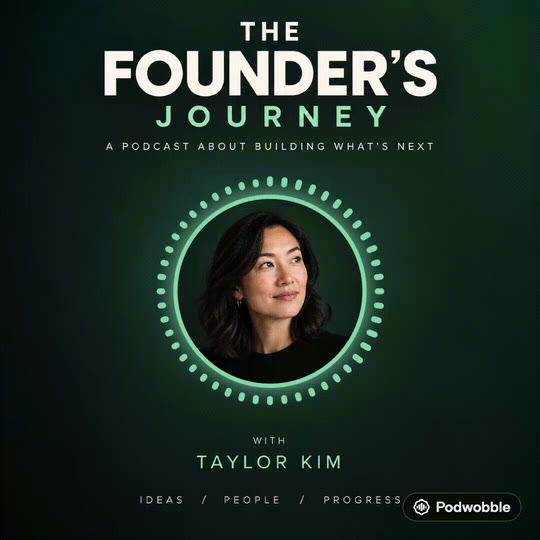
What goes into a podcast clip video
- The audio. A clip from the episode, usually 30 to 90 seconds. MP3, WAV, M4A, FLAC, AIFF and Ogg all work in Podwobble.
- An image. The host’s photo, the show artwork, or both.
- A waveform. The moving shape that tells someone scrolling past that this is sound, not a still.
- Captions. Feeds play video muted until someone taps. Captions are what make a muted viewer stay.
- Branding. Show name, logo, colours, so the clip is recognisably yours when it is shared on.
Step 1: Pick the clip
The clip matters more than the design. Look for a moment that makes sense with no context: a strong opinion, a surprising number, a short story with an ending, a line someone would quote. Skip intros, sponsor reads and anything that starts with “so, like I was saying”.
You don’t need to cut the audio in another app first. Podwobble exports either the whole episode or the stretch between an in and an out point, so you can bring in the full file and mark the clip there.
Step 2: Import the audio and set up the voices
Open Podwobble and drop the episode into the Voices step. Give each host a photo, a name and a colour.
If you recorded each host on their own track, add those solo recordings too. Podwobble reads them to work out who is talking when, so each host’s waveform moves only with their own voice. The solo tracks never appear in the video. On a two-person show this is what makes the clip readable: whoever is speaking is the one who moves.
Step 3: Design the look
In the Look step, start from one of the six templates or build your own:
- Waveform style. A reactive ring around the host photo, or one of four standalone styles: EQ Bars, Rise, Wave and Dots.
- Colour. Seven palettes, or your own show colours.
- Extras. Name plates, a progress bar, your own text, your logo and a background image.
Drag anything on the preview to move it. When it looks right, save it as a template and next week’s clip takes a minute.
Step 4: Add captions
In Captions, transcribe the clip. Podwobble does this on your computer with a speech model that ships inside the app, so the audio is never uploaded anywhere. Captions can light up each word as it is spoken and take each host’s colour, either in a box or as outlined text. Other ways to get this look, including Final Cut Pro and a free command-line route, are in word-by-word animated captions on a Mac.
Two tips for cleaner captions:
- If you added solo recordings, choose one under Transcribe from. A clean voice track catches far more words than a mix with music under it.
- Read the transcript once before exporting. Names, show titles and jargon are where any speech model slips.
Transcription is English only. For a show in another language, import the captions you already have with Import SRT/VTT….
Step 5: Export every size at once
In Export, tick each shape you post in. They render together as H.264 MP4 at 30fps with the captions burned in, and you can save .srt and .vtt files alongside for platforms that take separate captions.
| Shape | Where it goes |
|---|---|
| 9:16 vertical | Instagram Reels, YouTube Shorts, TikTok, Stories |
| 4:5 portrait | Instagram and Facebook feed posts |
| 1:1 square | Feed posts, LinkedIn, X |
| 16:9 wide | YouTube, and full episodes as video |
If you only have time for one, make the 9:16. It plays full screen on all three short-video platforms.
Other ways to turn a podcast clip into video on a Mac
Web tools
Headliner, Wavve, EchoWave, Recast and others run in the browser (some of them call these clips “audiograms”). You upload the audio, design in the page and download the render. They work on any computer and several can pull episodes straight from your RSS feed. The trade-offs: your audio goes to someone else’s server, most have monthly limits or plans, and they need a connection for every step.
Video editors
Final Cut Pro, Premiere Pro, After Effects and DaVinci Resolve can all make this kind of video, and give you complete control. They are also the slow way: waveform plug-ins or keyframes, a separate captioning pass, and a separate export for each aspect ratio. Worth it for a one-off hero piece, heavy going every week.
A native Mac app
This is the gap Podwobble fills: made for turning audio into video and nothing else, so it is quicker than an editor, and it runs entirely on your Mac, so nothing is uploaded and it works without a connection. It is free with a small mark in the corner of each export; Pro removes the mark and adds 2K and 4K, with a lifetime option if you’d rather not subscribe.
On Windows
On a Windows PC everything above applies: the four steps, Voices, Look, Captions and Export, with the same features and the same Pro. Only the requirements and the download differ.
- What it runs on. Windows 10 or 11, 64-bit, on an Intel or AMD processor. Windows on Arm isn’t supported.
- Getting it. A direct download of about 150 MB, not the Microsoft Store. The installer isn’t code-signed yet; the support page explains what to expect the first time you run it.
- One licence, any mix. A Pro licence key works on up to three computers, Mac or Windows.
For more on the PC version, see the Windows announcement. Microsoft’s free Clipchamp editor, which comes with Windows 11 and is in the Microsoft Store for Windows 10, can do a simpler version; the steps are in converting an MP3 to an MP4 on Windows.
Questions
Is there a free app to turn a podcast into video on a Mac?
Yes. Podwobble is free for unlimited projects and exports. Free exports carry a small Podwobble mark in the bottom-right corner; every feature and format works either way, and it’s free on Windows too. I’ve compared it with the other free ways to turn a podcast into a video.
Can I make a podcast video without uploading my audio?
Yes, with an app that runs locally. Podwobble transcribes, renders and saves everything on your computer and needs no account or internet connection. More on making a podcast video without uploading it, including how to check what a tool does with your audio.
How long should a podcast clip be?
Thirty to ninety seconds works for most feeds. Long enough for one complete idea, short enough that people finish it. For YouTube, you can export the whole episode as a 16:9 video; here’s how to turn a podcast into a YouTube video.
Which computers does Podwobble run on?
Macs with Apple silicon (M1 or later) running macOS 13 Ventura or later; Intel Macs aren’t supported. On Windows, 64-bit Windows 10 or 11 on an Intel or AMD processor.
Can the waveform follow two different hosts?
Yes. Add each host’s solo recording in the Voices step and each host’s ring moves only when they talk.
Make your first podcast clip today. Podwobble is free for Mac and Windows, with a small mark on exports.
Written with the help of AI, from my notes on how Podwobble works. Facts are checked against the linked sources.