 Podwobble
How to turn an audio podcast into a video podcast for Spotify
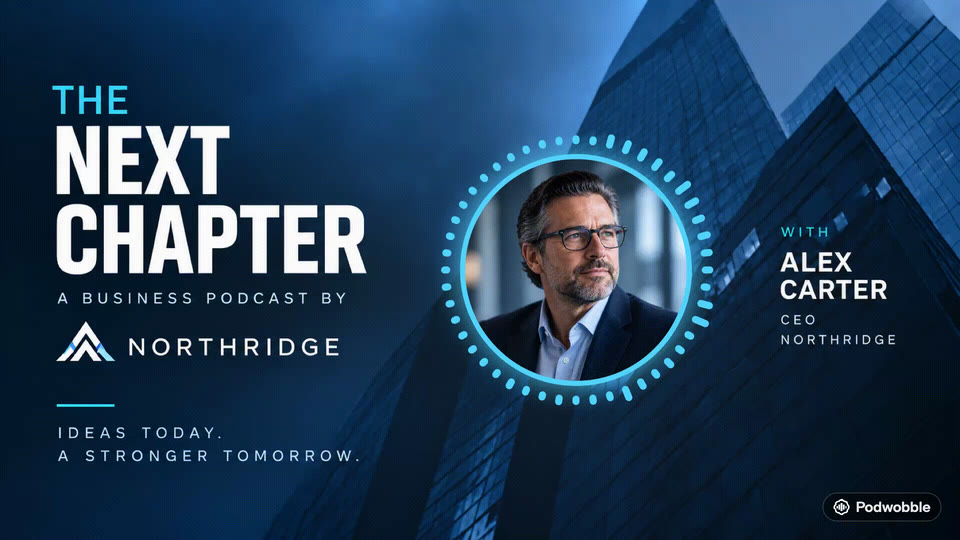
The short answer: an audio-only show can have video on Spotify. Make a 16:9 MP4 from the episode, with host photos, a moving waveform and captions as the picture. Add it on the Spotify for Creators website: as a new episode if Spotify hosts your show, or with Upload video on the episode if not. Some hosts send video themselves.
This guide covers what Spotify asks for, which upload route applies to your show, and how to make the video on a Mac or Windows PC with Podwobble, the app I make for turning audio into video. The Spotify parts apply whichever tool you use.
Can an audio-only podcast have video on Spotify?
Yes. Spotify’s video page for creators says you can start uploading video “at any time, on any show”, and that a show can publish a mix of audio and video episodes. So you don’t have to convert the back catalogue, or commit every future episode.
Spotify’s video specs describe the file: its format, shape and length. Nothing on that page asks for camera footage. A video built from the episode’s audio, with the hosts’ photos, a waveform that moves with each voice and captions, is a video file like any other.
The video only plays on Spotify. Spotify’s help page on publishing videos says that on other platforms the episode is audio-only.
What video file does Spotify want?
An MP4 in 16:9 with the episode’s audio in it. These are the figures from Spotify’s video specs page:
| Recommended | |
|---|---|
| Container | MP4 (MOV also accepted) |
| Video codec | H.264 or H.265 (HEVC) |
| Resolution | 1080p or higher (180p is the minimum) |
| Shape | 16:9 widescreen |
| Frame rate | 24, 25, 30, 50 or 60fps |
| Audio | AAC-LC, PCM or FLAC, 128 kbps or higher |
| File size | Less than 10 GB (up to 60 GB accepted) |
| Length | Less than 4 hours (up to 12 accepted) |
The same page says the audio and video tracks must be the same duration. Spotify’s list of video errors includes one for exactly that mismatch, and others for a frame rate below 24fps or above 60fps.
Which upload route applies to your show?
It depends on where the show is hosted. If you upload in Spotify for Creators, its publishing page sets two rules: video can only be uploaded on the website, not in the mobile app, and you have to verify your account before publishing your first video. Do that before episode day.
Your show is hosted with Spotify for Creators
For a new episode, choose New Episode and pick the video file in place of an audio file. Spotify says the audio from your video is then available through your RSS feed, so other apps still get the episode as audio from the same upload.
For an episode that is already out, open it on the Episodes page and choose Upload new file. Spotify’s page on replacing an episode with video notes that the audio has to be included in the video file you upload.
Your host connects to Spotify directly
Some hosts can send video to Spotify themselves. Spotify’s page for shows hosted elsewhere lists Audioboom, Audiomeans, Libsyn, Podigee and Podspace. If you’re with one of them, upload the video in your host’s dashboard and ask them if you can’t see the option.
Your show is hosted anywhere else
- Publish the audio episode with your host as usual. The next steps start from an episode that is already listed in Spotify for Creators.
- Log in to Spotify for Creators on the web, pick your show and open Episodes.
- Click the three dots next to the episode, then Upload video, and choose the file.
- Preview it, then Publish.
A video added this way is only available in the Spotify apps and web player. Spotify also says you can’t use this route if you’ve already uploaded video through your host.
How to make the video without a camera
Here is the whole job in Podwobble, the same on a Mac and on Windows. Nothing in it needs an account or an internet connection until you reach Spotify.
- Import the published mix. In Voices, bring in the same final file your listeners get (MP3, WAV, M4A, FLAC, AIFF and Ogg all work), intro, music and all. For shows Spotify hosts, the audio in the video file is what goes out through the RSS feed, so treat it as the episode itself and don’t use a rough cut.
- Set up the hosts. Give each host a photo, a name and a colour. If you recorded each person on their own track, add those solo recordings too: Podwobble uses them to work out who is talking when, so only the speaker’s waveform moves. The solo tracks never appear in the video.
- Design it once. In Look, start from a template or build a layout with the show title, name plates and a progress bar, then save it as a template for next week.
- Add captions. In Captions, transcription runs on your computer, so the episode isn’t uploaded anywhere. It is English only; for other languages use Import SRT/VTT….
- Export the whole episode in 16:9. In Export, choose the whole episode, not in and out points, and tick 16:9. You get an H.264 MP4 at 30fps: the container, a codec, the shape and one of the frame rates Spotify recommends.
If Spotify reports that the audio and video are different durations, its advice is to make sure both tracks start and end at the same time in the app you exported from.
My guide to turning a podcast clip into a video on a Mac goes deeper on waveform styles and caption looks. If you’re on Windows, the Windows announcement covers what you need to run it.
The same file suits YouTube, whose recommended upload settings are also an MP4 with H.264 video. If that’s next on your list, here’s how to turn a podcast into a YouTube video.
What changes after you add video
- Other apps stay as they are. The video is a Spotify-only layer. Apple Podcasts and every other app that reads your feed keep getting audio.
- You get a second set of numbers. Spotify for Creators shows a Video consumption section for each video episode, including watch time: how long the video was visible on a viewer’s screen.
- If you host elsewhere, the numbers are split. The Podcast Consultant’s 2026 guide points out that audio downloads stay in your host’s dashboard while video streams sit in Spotify for Creators, so you reconcile the two yourself.
Questions
Do I have to be on camera for a Spotify video podcast?
No. Spotify’s video specs describe the file, not what is in the picture. Host photos, a moving waveform and captions over the episode’s audio make a video you can upload.
Will the video show up on Apple Podcasts?
No. Spotify says videos are only available on Spotify, and the episode is audio-only on the other platforms you distribute to.
Can I upload a Spotify video from my phone?
Not in Spotify for Creators: its video uploads only work on the website. You can save a draft there and publish it later from the mobile app.
Do I have to switch hosting to Spotify?
No. If your show is hosted elsewhere you can add a video to an episode in Spotify for Creators with Upload video, or through your host if it is one of the five Spotify lists.
Which computers does Podwobble run on?
Macs with Apple silicon (M1 or later) running macOS 13 Ventura or later; Intel Macs aren’t supported. On Windows, 64-bit Windows 10 or 11 on an Intel or AMD processor; Windows on Arm isn’t supported. It’s free, with a small mark on exports; Pro removes it and adds 2K and 4K.
Give your next episode a video for Spotify. Podwobble is free for Mac and Windows, with a small mark on exports.
Written with the help of AI, from my notes on how Podwobble works. Facts are checked against the linked sources.