 Podwobble
How to make word-by-word animated captions on a Mac
The short answer: on a Mac, use an app that transcribes the audio and burns in captions that light up each word as it is spoken. Podwobble does this offline, straight from a podcast’s audio. Final Cut Pro users can animate its captions with an add-on, and whisper.cpp makes a rough karaoke-style video for free.
Captions where each word lights up as it is spoken are a common look for short podcast clips, and most of the guides that come up for making them on a Mac are from companies selling a captions tool. This one covers three routes: Podwobble, the app I make, which starts from the audio; Final Cut Pro with an add-on, for people who already edit there; and whisper.cpp, which is free and rough. I’ve tried to say plainly what each is good for, so read the Podwobble part knowing who wrote it. Facts about other tools come from their own pages, linked as I go, as they stood on 28 October 2026.
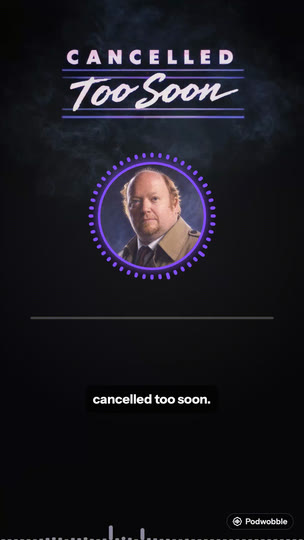
What makes a caption “word by word”?
Timing for every single word. Ordinary captions come in blocks: a line or two appears, stays for a few seconds, and is replaced. Word-by-word captions need to know when each word starts, and they use that in one of two ways:
- Highlight the current word. The whole line is on screen and the word being spoken changes colour or gets a box behind it. Some tools call this karaoke style.
- One word at a time. Each word appears on its own, in large type, and is replaced by the next.
Either way, the effect lives in the picture. A separate caption file such as an .srt is drawn by each platform’s own player in its own style, so if you want the animation, the captions have to be burned into the video.
How do you do it in Podwobble?
Podwobble is a desktop app for Mac and Windows that turns audio into video, so this is the route when you have a podcast episode or clip and no footage. Captions are one of its four steps:
- Voices. Drop in the audio (MP3, WAV, M4A, FLAC, AIFF or Ogg) and give each host a photo, a name and a colour.
- Look. Pick a template or build your own: a ring around the host photo that reacts to the voice, or a standalone waveform, plus your logo and text.
- Captions. Transcribe the audio. It happens on your computer, with a speech model that ships inside the app, so nothing is uploaded and it works offline. Captions can light up each word as it is spoken, take each host’s colour, and sit in a box or as outlined text.
- Export. Tick 9:16, 4:5, 1:1 and 16:9, and they render in one go as H.264 MP4 at 30fps with the captions burned in. You can save
.srtand.vttfiles alongside for platforms that also take a caption file.
The limits, so you know before you start: transcription is English only (for another language, bring in captions you already have with Import SRT/VTT…), and Podwobble doesn’t edit camera footage, so if your clip is a filmed video, the Final Cut route below fits better. Free exports carry a small Podwobble mark in the bottom-right corner; Pro removes it. On a Mac it needs Apple silicon (M1 or later) and macOS 13 or later. The whole clip workflow is in turning a podcast clip into a video.
How do you make captions show who is talking?
Give each host their own caption colour. On a two-person show, a highlighted word tells the viewer what is being said but not who is saying it; when each host’s captions keep the same colour every time, the viewer can follow the conversation with the sound off.
In Podwobble, give each host a colour in Voices; captions can take each host’s colour. If you recorded each host on a separate track, add those solo recordings too: Podwobble uses them to work out who is talking when, and under Transcribe from you can pick a solo recording for a cleaner transcript than the mix gives. The solo tracks never appear in the video. How to get solo tracks that line up with the edited episode is in showing who’s speaking in a podcast video.
How do you do it in Final Cut Pro?
With an add-on. Final Cut Pro can make the captions itself: its Generate Captions feature transcribes the audio, needs a Mac with Apple silicon, works in U.S. English only, and downloads its language model once, the first time you use it. What it makes are closed captions in the iTT format, which Apple’s captions workflow page describes as something you format, export as a file or embed. Apple’s pages don’t describe animating them word by word.
Two Mac App Store apps add animation, each listed at $19.99 on the US store:
- captionAnimator converts the captions in a Final Cut Pro project into titles. You choose one or more titles as templates and it applies their style and animation to each caption. It needs macOS 13.5 or later. Its listing works per caption, so for one word at a time, start from one-word captions such as the whisper.cpp
.srtbelow. - Captionator for Final Cut does its own transcription with Whisper, which its listing says runs on your Mac, in nearly 100 languages, and makes animated titles where you can animate single words or whole sentences. It needs macOS 13 or later.
This is the route to take when the clip is filmed footage, when the show isn’t in English, or when you already cut everything in Final Cut. It is slower for an audio-only podcast, since you still have to build the picture yourself and export each shape separately.
Is there a free way that runs on your own Mac?
Yes, if you are happy in Terminal. whisper.cpp is a free, open-source speech recogniser that runs on your computer, and its command-line tool has two features that few caption guides mention. You build it and download a model as its README explains; I covered that in making a podcast video without uploading it, so I won’t repeat it here.
A karaoke video in two commands
The README’s karaoke-style movie section, marked experimental, shows that adding -owts makes it write a script that draws the transcript with the word being spoken picked out. The script needs FFmpeg (brew install ffmpeg with Homebrew):
./build/bin/whisper-cli -m models/ggml-base.en.bin -f clip.wav -owts
source clip.wav.wts
That leaves clip.wav.mp4 next to your audio. The tool’s default font for this is a path to Courier New Bold in macOS’s own font folder, as its options list shows, so on a Mac it works without setting one; elsewhere, point -fp at a monospace font. Be clear about what you get: in the current code the video is a plain black strip 1,200 pixels wide and 120 high, with grey text, and it highlights tokens, which are sometimes parts of words. It is a quick way to check timing, not something to post.
A caption file with one word per caption
The more useful trick is in the README’s word-level timestamp section: -ml 1 sets the longest caption to one character, which in practice gives each word its own timing. Add -sow so it splits on whole words rather than pieces of words, and -osrt to save the result:
./build/bin/whisper-cli -m models/ggml-base.en.bin -f clip.wav -ml 1 -sow -osrtThe .srt it writes shows one word at a time in any editor that imports SRT captions, including Final Cut Pro, where you can style them or hand them to one of the add-ons above. Some captions may hold only a comma or full stop; the README’s own example shows punctuation on its own lines. For a show in another language, use a model without .en in its name (the models list explains the difference) and add -l with the language code, or -l auto to detect it, since the tool assumes English otherwise.
What about Descript and CapCut?
Both do this inside a full editor. Descript’s captions are built from your script, and you can style the fill, stroke and background of the word currently being spoken, style the words not yet spoken, and animate each word, line or paragraph as it arrives; its one-word presets show a single word at a time. CapCut’s desktop app, which its captions page says runs on macOS 10.14 or later, has automatic captions with text templates and animation effects, and a Highlight feature that styles keywords in the captions. Both are good choices if you already edit there; check each one’s plan before building a weekly routine on it.
The routes side by side
| Route | Starts from | Languages | Good for | The catch |
|---|---|---|---|---|
| Podwobble | Audio | English (others by importing SRT/VTT) | Weekly podcast clips in four shapes, two hosts | No camera footage; small mark on free exports |
| Final Cut Pro + add-on | Footage or audio | U.S. English with Generate Captions; Captionator lists nearly 100 | Filmed clips, editing you already do | Final Cut plus a $19.99 add-on; build each shape yourself |
| whisper.cpp | Audio | Many, with a multilingual model and -l | Free, offline word timing | Command line; its own video is a plain strip |
| Descript, CapCut | Footage or audio | See each tool | If you already edit there | Check each plan |
How do you make word-by-word captions easy to read?
Keep them short and large. A few words on screen at once is plenty when one of them is always moving; long lines make the eye chase the highlight. Put them where the platform’s own buttons and text won’t cover them, which usually means above the bottom of the frame rather than at it. And start from the cleanest audio you have: a solo host track or a clip without music under it gives the speech model fewer words to get wrong, which matters more here because every word is on show. If you are cutting clips for Shorts, the timing and length rules are in making YouTube Shorts from a podcast.
On Windows
Podwobble works the same way on a Windows PC, with the same four steps and the same captions; it needs 64-bit Windows 10 or 11 on an Intel or AMD processor, and the installer isn’t code-signed yet, so the support page explains what to expect the first time you run it. whisper.cpp runs on Windows too. The one-word .srt command works there; the karaoke script is a bash script, so it needs a bash shell and FFmpeg, plus a font path passed to -fp. The Final Cut add-ons are Mac-only. More on the PC version in the Windows announcement.
Questions
Can I make word-by-word captions for free on a Mac?
Yes. whisper.cpp is free and can write a caption file with one word per caption, or a rough karaoke video. Podwobble is free too, with a small mark in the corner of each export.
Can I make animated captions without uploading my audio?
Yes. Podwobble and whisper.cpp both transcribe on your own computer, and Captionator’s listing says its transcription runs on your Mac. Final Cut Pro’s Generate Captions needs a connection once, to download its language model.
Do word-by-word captions work in an SRT file?
Not as an animation. A platform shows an SRT file in its own caption style, so the highlight has to be burned into the video. What an SRT can do is show one word per caption, which whisper.cpp makes with -ml 1.
Can the captions be a different colour for each host?
In Podwobble, yes: captions can take each host’s colour, and adding each host’s solo recording helps it work out who is talking when.
Turn your next clip into a video with captions that follow every word. Podwobble is free for Mac and Windows, with a small mark on exports.
Written with the help of AI, from my notes on how Podwobble works. Facts are checked against the linked sources.