 Podwobble
How to show who’s speaking in a podcast video
The short answer: give each host a photo with a waveform that moves only with their own recording, plus a name plate and their own caption colour. That needs each host on a separate track, lined up with the finished episode. With only the mixed file, use speaker detection or name the speaker on screen.
On a filmed podcast the camera cuts to whoever is talking. An audio-only show turned into video has no camera to cut, so a two-host clip can leave viewers guessing which voice belongs to which face. This guide covers the cues that answer that question, the recordings you need for them, and what to do when all you have is the final mix. I make Podwobble, an app for Mac and Windows that turns audio into video and handles this, so I’ll show how it works there, but the ideas apply in any tool.
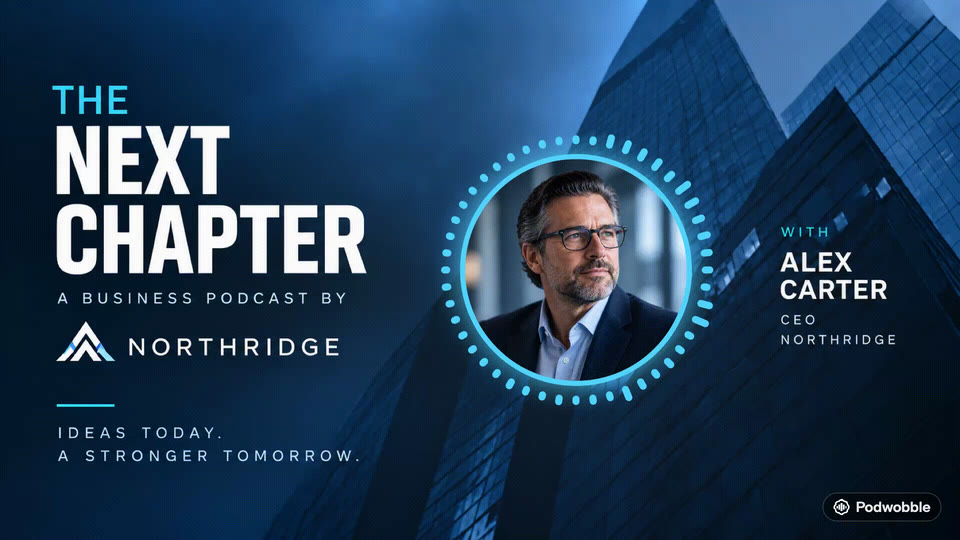
What tells a viewer who is talking?
Movement tied to one voice does most of the work. If only the speaker’s photo reacts, people read the conversation the way they would read a cut between cameras. The other cues back it up, and they help most when someone watches with the sound off.
| Cue | What it tells the viewer | What you need |
|---|---|---|
| A waveform or ring that moves with one host | Who is speaking right now | A separate recording of each host, or a tool that detects speakers |
| A photo for each host | Which face goes with the voice | A photo or illustration per host |
| A name plate | Who that person is | Names (and a role, if it helps) |
| A caption colour per host | Who said each line, even muted | Captions that know which host each word belongs to |
| A fixed position | Same host, same side, every clip | A saved layout you reuse |
Pick host colours that are easy to tell apart, and don’t rely on colour alone: a photo and a name in a fixed place still work for anyone who can’t separate the two colours.
Why one waveform isn’t enough
A waveform drawn from the mixed episode moves whenever anyone makes a sound. On a two-person show it says “someone is talking” and nothing more. Putting two copies of it next to two photos makes things worse: both move at once, all the time. To show who is speaking, each host’s visual has to be driven by that host’s voice alone.
How do you get a separate recording of each host?
Record each person on their own track from the start. If the show is edited from separate tracks, the files already exist somewhere.
- Remote recording. Some remote recording tools keep a separate file per person. Riverside, for example, records each participant locally as a separate track that you can download after the session, alongside a combined recording.
- In the same room. Give each host their own microphone and record each mic to its own track rather than straight to a stereo mix.
- After editing. If someone else edits the show, ask for each host’s track exported on its own as well as the finished episode.
Keep each host’s track lined up with the finished episode
This is the step that’s easy to miss, and it is where two-host videos go wrong. The solo tracks drive the animation, but the finished episode is what the audience hears, so the two have to match exactly. The raw recordings from the session usually don’t: by the time an episode is finished it has an intro, cut mistakes and tightened pauses.
The fix is to export each host from the edited project, not from the raw session:
- Open the finished, edited project in your editor.
- Solo one host’s track (mute everything else) and export the full length of the episode, from the very start, including the intro music where that host is silent.
- Repeat for each host. Every file should be exactly as long as the finished episode.
- Don’t trim silence or strip pauses from the solo files. The silent gaps are what keep each one in step with the mix.
If you cut a cough from the mix but not from a solo track, everything after that point is out by the length of the cough, and the ring starts moving for the wrong line. If a clip looks off, compare where the speech starts on the solo track and on the episode; if they don’t match, re-export from the edited project.
Setting it up in Podwobble
- Voices. Import the finished episode, then give each host a photo, a name and a colour. Add each host’s solo recording. Podwobble uses them to work out who is talking when; they control the animation only and never appear in the video.
- Look. Choose a reactive ring around each host’s photo, or a bounce on the photo, and add name plates. Drag each host to their spot on the preview, then save the look as a template so the same host sits in the same place every week.
- Captions. Transcription runs on your computer and is English only (for other languages, use Import SRT/VTT…). Captions can take each host’s colour and light up word by word. Under Transcribe from, pick a solo recording for a cleaner transcript than the mix with music under it.
- Export. Pick the whole episode or set in and out points, tick the shapes you need (16:9, 9:16, 4:5, 1:1) and they render together.
A solo show can start with just the episode audio. For the full walkthrough from choosing a clip to exporting, see turning a podcast clip into a video. If you’d rather build two waveforms yourself with a free command-line tool, the FFmpeg two-host command does the waveforms, without the photos or captions.
What if you only have the mixed recording?
Then something has to work out who is speaking from the mix itself, or you tell the viewer in words.
- Speaker detection. Descript’s speaker detection analyses the audio to find distinct voices, then asks you to name each one; it works on files up to five hours long. Once speakers are labelled, you can assign a waveform to one speaker so it only moves when that person talks. Its help page notes the result depends on the labels being accurate, so check them on a show where voices overlap.
- Say it on screen. With one shared waveform, a name plate for whoever leads the clip, or the speaker’s name in the caption text, still tells people who is talking. This works best for clips where one person does most of the speaking.
- Fix it next time. Ask for separate tracks when you record or edit the next episode. Some remote recording tools, such as Riverside, already keep one per person, and in a room it means recording each mic to its own track. Either way, every clip after that is easier to read.
Choosing two-host clips that read well
Even with good cues, rapid back-and-forth is hard to follow in a short clip. Moments where one host makes a point and the other reacts or pushes back work well: the switch between them is clear, and the second voice gives the clip a natural ending. Avoid stretches where both talk over each other; any visual will look busy there. For more on short vertical clips, see making YouTube Shorts from a podcast.
Questions
Do I need video of the hosts to show who is speaking?
No. A photo for each host with a waveform or ring that moves only with that host’s voice does the same job as cutting between cameras, and name plates and caption colours fill in the rest.
Can a waveform follow just one person?
Yes, if it is driven by that person’s own recording, or by speaker labels in a tool that detects speakers, such as Descript. A waveform drawn from the mixed episode moves for everyone.
Why does the wrong host’s ring move?
Usually the solo tracks don’t line up with the finished episode, because they came from the raw session rather than the edited project. Export each host again from the edited project, full length, with the silences left in.
Will the solo recordings be heard in the video?
Not in Podwobble. The solo tracks only drive the animation; the finished episode is the soundtrack.
Is it free?
Podwobble is free for unlimited projects and exports, with a small mark in the corner of each export; Pro removes the mark and adds 2K and 4K.
Make a two-host clip that shows who’s talking. Podwobble is free for Mac and Windows, with a small mark on exports.
Written with the help of AI, from my notes on how Podwobble works. Facts are checked against the linked sources.