 Podwobble
How to add a waveform to audio and make it a video
The short answer: you can’t add a waveform to an audio file itself. You make a video: a tool reads the sound, draws a shape that moves with it over a picture, and saves both as an MP4. Free ways that keep the file on your own computer are Clipchamp’s audio visualiser, one FFmpeg command, or a desktop app like Podwobble.
A waveform is the moving line or set of bars that tells someone scrolling past that a video has sound in it. Most guides to adding one walk you through a single web tool, where you upload the audio first. This one covers three routes that work on files on your own Mac or Windows PC, including an FFmpeg command that the usual guides skip, and how to give each host on a two-person show their own waveform. The third route is Podwobble, the app I make, so read that part knowing who wrote it. Facts about other tools come from their own pages, linked as I go, as they stood on 14 October 2026.
What does adding a waveform to audio actually make?
A video file. An MP3 or WAV holds sound and nothing else, so there is nowhere inside it to put a picture. Every waveform tool does the same three things: it reads the audio, draws a frame of the shape for each moment of the sound, and lays those frames over a background before saving the lot, with the audio, as an MP4. That is also why the result can go on YouTube, Instagram or TikTok when the bare audio can’t.
So before you start, you need two things: the audio, cut to the length you want, and one picture in the shape of the finished video. That means 1920 by 1080 pixels for a wide YouTube video, or 1080 by 1920 for Reels, Shorts and TikTok. Show art, a host photo or a plain colour all work.
How do you add a waveform with one FFmpeg command?
FFmpeg is free, open-source and runs the same on Mac and Windows, and its showwaves filter turns audio into a moving waveform. Nothing is uploaded and nothing is added to the corner.
Getting it. FFmpeg’s own download page links to ready-made builds for macOS and Windows. On a Mac with Homebrew, brew install ffmpeg installs it (Homebrew’s formula). On Windows, the gyan.dev build is in winget; the exact line is in my MP3 to MP4 guide.
Put your picture and your audio in one folder and open a terminal there. On Windows 11, right-click the folder and choose Open in Terminal; on a Mac, open Terminal, type cd , drag the folder into the window and press Return. Then run this (it is one line):
ffmpeg -loop 1 -framerate 30 -i cover.jpg -i episode.mp3 -filter_complex "[1:a]showwaves=s=1920x300:mode=cline:colors=white:rate=30:scale=sqrt:draw=full[w];[0:v][w]overlay=0:780:shortest=1,format=yuv420p[v]" -map "[v]" -map 1:a -c:v libx264 -c:a aac -b:a 192k episode.mp4It works in the Mac Terminal, Windows PowerShell and Command Prompt alike. What the parts do:
-loop 1 -framerate 30 -i cover.jpgholds your picture on screen at 30 frames a second for as long as it is needed.showwaves=s=1920x300draws the waveform in a strip as wide as the video and 300 pixels tall.mode=clinedraws it as a line centred on the middle of that strip, so it grows up and down like the familiar podcast waveform. The filter also haspoint,lineandp2pmodes.scale=sqrtanddraw=fullare the two options worth knowing. Speech is mostly quiet compared with its loudest peaks, so with the defaults (a linear scale, and pixels drawn fainter when many samples share one column) a spoken waveform can come out as a thin, faint line. A square-root scale lifts the quieter parts anddraw=fulldraws every pixel solid.overlay=0:780places the strip 780 pixels down, near the bottom of a 1080-pixel-high picture.shortest=1ends the video when the audio ends.format=yuv420p,-c:v libx264and-c:a aacmake an ordinary H.264 MP4 that every platform accepts.
For a vertical video, use a 1080 by 1920 picture and change two numbers: s=1080x400 for the strip and overlay=0:1300 to put it in the lower third. colors= takes a colour name or a hex value such as 0x4FC3F7.
What you don’t get: captions, a host photo that reacts, or anything you can drag into place. Every change means editing numbers and running it again. In return it is free and leaves no mark, and once the line works, the same line can run in a loop over a whole folder of episodes.
How do you give each host their own waveform?
Use each host’s own recording. A single waveform drawn from the mixed episode moves whenever anyone speaks, so on a two-person show it can’t tell the viewer who is talking. If you recorded each host on a separate track, each track can drive its own waveform.
In FFmpeg, that means two showwaves filters side by side, one per track, and mixing the two tracks back together for the soundtrack:
ffmpeg -loop 1 -framerate 30 -i cover.jpg -i host-a.wav -i host-b.wav -filter_complex "[1:a]showwaves=s=840x240:mode=cline:colors=0x4FC3F7:rate=30:scale=sqrt:draw=full[wa];[2:a]showwaves=s=840x240:mode=cline:colors=0xFFB74D:rate=30:scale=sqrt:draw=full[wb];[0:v][wa]overlay=80:780:shortest=1[t];[t][wb]overlay=1000:780:shortest=1,format=yuv420p[v];[1:a][2:a]amix=inputs=2:normalize=0[a]" -map "[v]" -map "[a]" -c:v libx264 -c:a aac -b:a 192k two-hosts.mp4Host A gets a blue waveform on the left and host B an orange one on the right. amix mixes the two tracks into one soundtrack, and normalize=0 keeps each at its original volume rather than turning both down, which suits speech; if both hosts often shout at once, the mix can clip. The two tracks need to start at the same moment, which they will if they came out of the same recording session. If your editor has already mixed the episode, use the finished mix as the soundtrack instead and keep the solo tracks only for drawing.
Other tools handle this too. Descript lets you assign a waveform to one speaker using its speaker labels. In Podwobble you add each host’s solo recording in Voices, and it uses them to work out who is talking when; the solo tracks never appear in the video. For the other cues, and how to export solo tracks that line up with the edited episode, see showing who’s speaking in a podcast video.
How do you add a waveform in Clipchamp?
Clipchamp, Microsoft’s video editor, has an audio visualiser that Microsoft describes as free, with a choice between “classic music bars or pulsing waveforms”. On Windows 10 and 11 it is a desktop app (it may already be installed on Windows 11), and on a Mac it runs in Edge or Chrome. Microsoft’s pricing page says free exports go up to 1080p with no watermark.
- Bring in the audio and the picture. Import both and put the audio on the timeline, with the picture above it, stretched to the same length.
- Find the visualiser. It is an overlay in the content library.
- Add it to the timeline above the picture and stretch it to the length of the audio.
- Style it. Change its colour, size and position on the preview.
- Export at 1080p.
For a single video, this is the easiest free route and needs no command line. Two things to know: Microsoft says that with a personal account, Clipchamp works on your media straight from your computer and only copies it to its online storage if you turn on content backup (work and school accounts keep project media in OneDrive), but its autocaptions send the audio to Microsoft’s Azure services. And one project makes one shape: for a wide and a vertical version, Microsoft’s advice is to make a copy of the video on the editor homepage and change the copy’s ratio.
How do you do it in Podwobble?
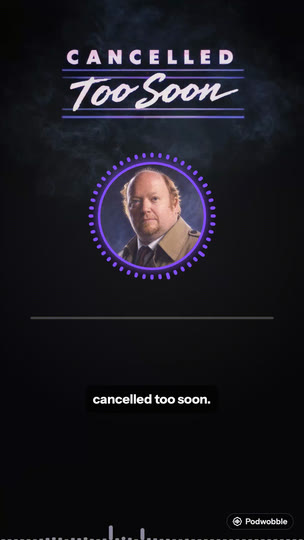
Podwobble is a desktop app for Mac and Windows made for this one job. It is the route to take when you make one of these every week, in more than one shape, with captions:
- Voices. Drop in the audio (MP3, WAV, M4A, FLAC, AIFF or Ogg) and give each host a photo, a name and a colour. Add solo recordings if you have them.
- Look. Pick one of six templates or build your own. The waveform can be a ring around the host photo that reacts to the voice, or one of four standalone styles: EQ Bars, Rise, Wave and Dots. Add your logo, text and a background image, and drag things into place on the preview.
- Captions. Transcribe on your own computer, with each word lighting up as it is spoken. English only; for other languages, use Import SRT/VTT….
- Export. Tick 16:9, 9:16, 4:5 and 1:1 and they all render in one go as H.264 MP4 at 30fps, for the whole file or between an in and an out point.
The catches: the free version puts a small Podwobble mark in the bottom-right corner of every export, and Pro removes it. On a Mac it needs Apple silicon (M1 or later) and macOS 13 or later; on Windows, 64-bit Windows 10 or 11 on an Intel or AMD processor. The Windows installer isn’t code-signed yet; the support page explains what to expect the first time. There is more on the PC version in the Windows announcement, and a full walkthrough in turning a podcast clip into a video.
What about Kapwing and Descript?
Both do this well, and both put the waveform inside a full editor. Kapwing’s sound wave generator offers styles from classic to stacked bars, dotted bars, radiating circles and bubbles; Descript’s waveform element comes in Lines, Circle, Ring and Wave. Kapwing works in the browser, so you upload the audio to start, and the FAQ on that page says exports from a free account carry a watermark. Whichever you pick, read the plan before you build a weekly routine on it.
The routes side by side
| Route | Runs on | Upload? | Good for | The catch |
|---|---|---|---|---|
| FFmpeg | Mac and Windows | No | Whole folders, two-host waveforms, no mark | Command line; no captions |
| Clipchamp | Windows app, or Edge/Chrome on a Mac | No (personal account); captions yes | One video, no command line | One shape per project; built by hand |
| Podwobble | Mac and Windows | No | Weekly clips, four shapes, captions | Small mark on free exports |
| Kapwing | Any browser | Yes | A fast start with templates | Watermark on free exports |
If all you need is for YouTube to accept the file, a still picture with no waveform does that too; the free ways to turn a podcast into a video cover that and more.
Questions
Can I add a waveform to audio for free?
Yes. FFmpeg is free with no watermark, Clipchamp’s visualiser is free with 1080p export, and Podwobble is free with a small mark in the corner of each export.
Can I add a waveform without uploading my audio?
Yes. FFmpeg and Podwobble work entirely on your own computer, and Microsoft says that with a personal account, Clipchamp works on your media from your computer unless you turn on content backup. Clipchamp’s autocaptions are the exception: they send the audio to Microsoft.
Why is my FFmpeg waveform so thin?
Speech is quiet next to its peaks, and the default settings draw it on a linear scale with faint pixels. Add scale=sqrt:draw=full to the showwaves options, as in the command above.
Can I put a waveform on top of an existing video?
Yes, that is the same idea with footage instead of a still picture underneath. Clipchamp’s visualiser works over a video background, and in FFmpeg you overlay the showwaves strip on the video.
Give your audio a waveform that moves with every voice. Podwobble is free for Mac and Windows, with a small mark on exports.
Written with the help of AI, from my notes on how Podwobble works. Facts are checked against the linked sources.