 Podwobble
Podcast video templates you can reuse every week
The short answer: a podcast video template is a saved layout you reuse for every episode. Colours, logo, photo position, waveform style and caption look stay fixed; only the audio, the caption words, the episode title and any guest change. Plan a version for each shape you post (9:16, 4:5, 1:1, 16:9) and save it in your video tool.
Most weeks, the slow part of a podcast clip isn’t the clip. It’s rebuilding the same layout again: finding the logo, matching the colours, nudging the captions into place. A template fixes that. This guide covers where ready-made podcast video templates come from, what a template for an audio show needs that most gallery templates don’t have, and how to set one up so each new episode only asks you for the parts that actually change. I use Podwobble, the app I make, for the worked example, but the split between fixed and weekly parts applies in any tool.
What is a podcast video template?
It’s a saved layout with slots. The slots that hold your brand (colours, fonts, logo, where the photo sits, how the captions look) are filled once. The slots that hold the episode (the audio, the episode title, a guest’s name and photo) are filled each time. A good template makes the second list as short as possible.
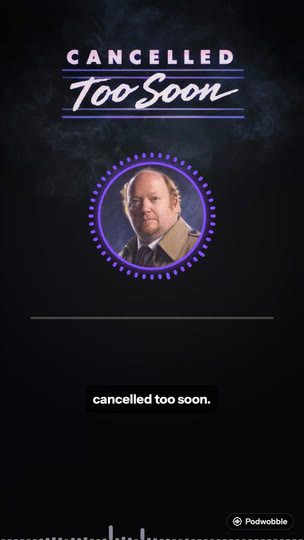
For an audio-only show there’s one more requirement: something on screen has to move with the sound. With no camera footage, a waveform, a ring around the host photo or word-by-word captions are what tell a viewer the clip is worth unmuting. A template that expects video clips in its placeholders doesn’t give you that.
Where can you find ready-made podcast video templates?
Search for “podcast video template” and most of what comes back is a gallery. They’re made for different jobs, so it helps to know which kind you’re looking at:
- Templates in a podcast clip tool. Headliner launched Video Templates in March 2026: seven starting styles, adjustable fonts, colours and layouts, and custom templates you build yourself and apply to every clip. In its Advanced Editor, saving a template is open to Basic and Pro plans, and typing
%%Podcast%%or%%Episode%%into a text box fills in the show name or episode title from your connected RSS feed. These are built for audio, which is their strength. - Templates in an online video editor. Kapwing’s side-by-side interview template is a 1920×1080 layout where you click each placeholder and replace it with your own footage. Visme’s podcast trailer template is four 1920×1080 pages with editable text, images, colours, fonts and logo. Both are tidy starting points for a video podcast or an episode promo; neither page mentions audio or waveforms.
- Templates for a desktop editor. Stock sites sell motion graphics templates for Premiere Pro and After Effects. One podcast promo on Envato Elements, for example, is a 25-second 1920×1080 Premiere Pro template with editable text and colours, downloadable with a subscription from $16.50 a month. They look polished, and you still add the waveform and captions yourself; here’s how to add an animated waveform in Premiere Pro.
Notice that the Kapwing, Visme and Envato examples are all 1920×1080, a 16:9 shape. That’s fine for YouTube, but a clip for Reels, Shorts or TikTok is 9:16, and a feed post is usually 4:5 or 1:1.
What should stay the same every week?
Everything a regular listener would recognise from across the room. Decide these once and stop revisiting them:
- Colours. One background, one accent, and a colour per host if there are two of you.
- Where things sit. The host photo, the show name and the captions in the same place every time, so a clip is recognisably yours before anyone reads a word.
- The moving part. One waveform style or one ring style. Switching every week makes the feed look like several different shows.
- Caption style. Font, size, box or outline, and whether words light up as they are spoken.
- Logo and extras. A logo, name plates or a progress bar, if you use them.
What changes every episode?
Only what belongs to the episode. If something on this list keeps ending up in the fixed parts, the template will need hand editing every week.
| Part | In the template | Each episode |
|---|---|---|
| Audio | No | The new episode, or the clip from it |
| Captions | The style | The words, from a fresh transcript |
| Show name, logo, colours | Yes | Nothing |
| Host photos and names | The position and frame | Only if the line-up changes |
| Guest name and photo | An empty slot | The guest |
| Episode title or hook line | The text box and its style | The words |
The common mistake is baking episode text into an image: an episode title typed into the background artwork, say. Then every week means reopening a design app. Keep words as live text in the video tool and keep images free of anything that dates.
Do you need a separate template for each shape?
Plan for each shape you post, yes. A 16:9 layout with the photo on one side and the title on the other doesn’t survive being squeezed into 9:16: in a tall frame the photo, the waveform and the captions need to stack down the middle instead. Work out the vertical version first if short-video platforms are where most people find you, then the wide one for YouTube.
Two things keep a set of layouts consistent across shapes: the same colours and type everywhere, and the same order from top to bottom (show name, photo with the moving part, captions). The table in the podcast clip guide shows which shape goes where.
How do you build a reusable template in Podwobble?
Podwobble runs on Mac and Windows with the same four steps, and the template lives in the Look step.
- Voices. Import an episode (MP3, WAV, M4A, FLAC, AIFF or Ogg) and give each host a photo, a name and a colour. If you have each host’s solo recording, add it so Podwobble can work out who is talking when, and each host’s visual reacts to their own voice; showing who’s speaking covers that in detail.
- Look. Start from one of the six templates or build your own. Pick a reactive ring or a bounce on the host photo, or a standalone waveform (EQ Bars, Rise, Wave or Dots). Choose one of seven palettes or your own show colours, add name plates, a progress bar, text, your logo or a background image, and drag things into place on the preview. Then save it as a template.
- Captions. Transcribe on your computer, then choose word-by-word highlight, per-host caption colours, and boxed or outlined text. Transcription is English only; for another language, bring your captions in with Import SRT/VTT….
- Export. Tick the shapes you need (16:9, 9:16, 4:5, 1:1). They render in one go as H.264 MP4 at 30fps with the captions burned in, with optional
.srtand.vttfiles alongside.
Next week you start a new project, import the new audio in Voices, pick your saved template in Look, transcribe, set the in and out points for the clip and export. Each project is a single .podwobble file with copies of its media, so last week’s episode stays intact if you want to go back to it.
A weekly routine that uses the template
- Pick the moment before you open anything. One complete idea, ideally 30 to 90 seconds; the Shorts guide has more on choosing it.
- Open a new project, bring in the episode and apply the saved template.
- Change only the weekly parts from the table above: the hook line, the guest, the clip’s in and out points.
- Transcribe, then watch the clip through once with the sound off, the way a feed shows it until someone taps.
- Export every shape you post in a single render.
If you find yourself changing the same “fixed” thing three weeks running, that’s a sign to update the template rather than keep fixing each clip.
Questions
Are there free podcast video templates?
Yes. Podwobble is free for unlimited projects and exports, including its six templates and saving your own; free exports carry a small Podwobble mark in the bottom-right corner, and Pro removes it. There are more options in free ways to turn a podcast into a video.
Can I use a video template for an audio-only podcast?
Only if it has room for a still image and something that moves with the sound. Templates whose placeholders expect camera footage leave an audio show with a static frame, so look for one with a waveform, or add one yourself.
Can one template work for a show with two hosts?
Yes. Give each host a fixed spot and their own colour, and add each host’s solo recording so Podwobble can tell who is talking when. Captions can take each host’s colour too.
What sizes should a podcast video template come in?
The four shapes the platforms use: 9:16 for Reels, Shorts and TikTok, 4:5 and 1:1 for feed posts, and 16:9 for YouTube. Podwobble renders all four from one project; Pro adds 2K and 4K.
Set up your show’s template once. Podwobble is free for Mac and Windows, with a small mark on exports.
Written with the help of AI, from my notes on how Podwobble works. Facts are checked against the linked sources.