 Podwobble
How to convert an MP3 to an MP4 with an image on a Mac
The short answer: an MP3 has no picture, so “converting” it means saving a still image and your audio together as a video. On a Mac, the free route is Apple’s iMovie: put the picture and the MP3 on the timeline, stretch the picture to the audio’s length, switch off any slow zoom, then choose File > Share > File.
The usual reason to look for an MP3 to MP4 converter is that a site won’t take your audio. YouTube is the common one: its help page says “You can’t upload audio files to create a YouTube video.” This guide covers three free ways to make that video on a Mac: Apple’s own iMovie, FFmpeg for a whole folder of episodes at once, and Podwobble, the app I make, so read that part knowing who wrote it. On a PC, see the Windows version of this guide. Facts about other tools come from their own pages, linked as I go, as they stood on 26 October 2026.
Is there a way to convert an MP3 straight to an MP4?
Not the way you’d turn a WAV into an MP3. An MP3 is sound only, and a video needs a picture for every second it plays. Every “MP3 to MP4” tool does the same two things: it holds one image on screen for as long as the audio runs, and saves the two together as a video file. Some pick the picture for you or use a plain black frame. It is worth choosing it yourself.
What size should the picture be?
The same shape as the video you want. For a YouTube video that is 16:9, so make the picture 1920 by 1080 pixels. For Reels, Shorts and TikTok it is 9:16, so 1080 by 1920; for a square post, 1080 by 1080. Square show art dropped into a wide video either gets cropped or leaves black bars down the sides, so it is worth making a version of the art in the right shape before you start.
How do you do it in iMovie?
iMovie is Apple’s video editor, free on the Mac App Store (the current version needs a recent macOS).
- Start a new movie in iMovie and bring in the MP3 and the picture.
- Put both on the timeline. The picture goes in the main video row, with the MP3 underneath it as the soundtrack.
- Stretch the picture to the end of the audio. A photo arrives as a short clip. Hold the pointer over its right-hand edge until it changes to the trim tool, then drag the edge away from the middle of the clip until it ends where the audio ends. For an hour-long episode, zoom the timeline out first. You can also change how long new photos last when they’re added under iMovie > Settings, Photo Duration.
- Check for a slow zoom. If the picture drifts or zooms as it plays, it has a Ken Burns effect. Select it, click the Cropping button, click Fit and then Apply. Apple’s cropping guide says Fit removes the effect and shows the whole image; if its shape doesn’t match the movie, black bars appear at the sides or top and bottom.
- Export. Choose File > Share > File, pick a resolution and quality, click Next, name the file and save it. When it is done, the video opens in QuickTime Player so you can check it.
Does iMovie save an MP4 or a MOV?
It depends on the settings. Apple’s own instructions for exporting an MP4 from iMovie say to set Quality to Medium or Low and Resolution to 720 or 540. If the video is going to YouTube, you don’t need an MP4 at all: YouTube’s list of supported formats includes .MOV as well as .MP4, so you can keep the higher settings. If a site insists on MP4 at full size, the FFmpeg route below makes one at whatever size your picture is.
How do you convert a whole folder of MP3s?
iMovie is fine for one file. For a back catalogue of fifty episodes, FFmpeg does it from the Terminal with no editor, no account and no watermark. It is free and open source.
Install it. The easiest way on a Mac is Homebrew, which supports macOS 15 Sequoia and newer; its site gives the one-line installer to paste into Terminal. Then run brew install ffmpeg. Homebrew’s FFmpeg page lists ready-built packages for Apple silicon. On an older macOS or an Intel Mac, use the macOS builds linked from FFmpeg’s own download page instead.
Run it over the folder. Put the MP3s and one picture called cover.jpg in the same folder. In Terminal, type cd and a space, drag the folder onto the Terminal window to fill in its path, and press Return. Then run:
for f in *.mp3; do ffmpeg -loop 1 -i cover.jpg -i "$f" -c:v libx264 -pix_fmt yuv420p -c:a aac -b:a 192k -shortest "${f%.mp3}.mp4"; doneEach episode.mp3 becomes an episode.mp4 next to it, with the picture held for the full length. The FFmpeg part in the middle is the same single-file command I explain line by line in the Windows guide. The two new parts:
for f in *.mp3; do … doneruns the command once for every MP3 in the folder. The file names need to end in lower-case.mp3."${f%.mp3}.mp4"names each video after its MP3, with the ending swapped. The quotes keep file names with spaces in one piece.
The video takes the picture’s size, so a 1920 by 1080 cover.jpg gives you full HD MP4s, and a 1080 by 1920 one gives vertical videos. The width and height need to be even numbers.
What if you want the picture to move?
A still image gets your audio accepted. It doesn’t give anyone scrolling past a reason to stop, because nothing on screen says there is sound. FFmpeg can draw a moving waveform over the picture with a longer command; it is in how to add a waveform to audio.
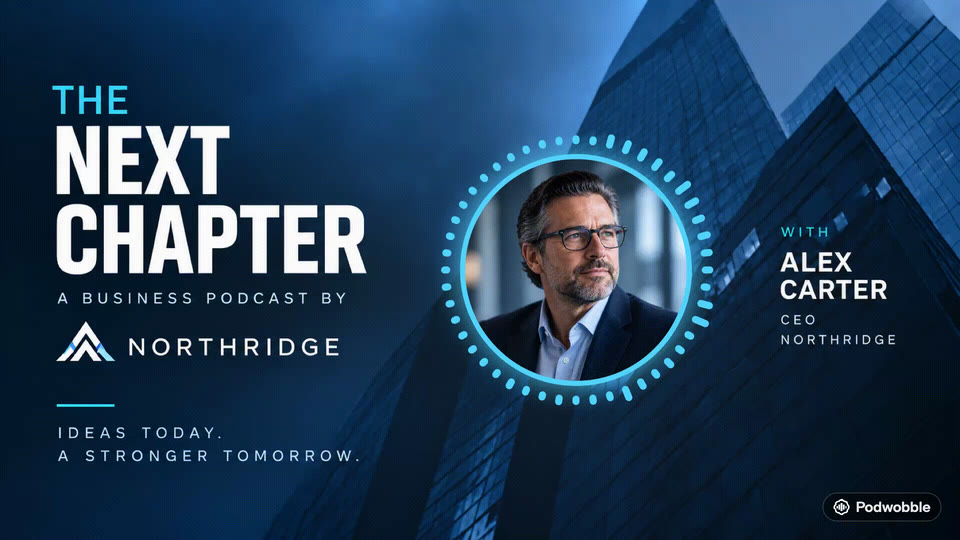
Podwobble is a desktop app for this one job, on Mac and Windows. You drop the audio into Voices (MP3, WAV, M4A, FLAC, AIFF or Ogg) and give each host a photo, a name and a colour. In Look you start from one of six templates, then choose a ring around the photo that reacts to the voice or one of four waveform styles, and add your logo, text and a background image. Captions transcribes English on your own computer, so the audio isn’t sent anywhere. In Export you choose any of 16:9, 9:16, 4:5 and 1:1 and they all render in one go as H.264 MP4 at 30fps, for the whole file or the stretch between an in and an out point.
Its catches: free exports carry a small Podwobble mark in the bottom-right corner, and Pro removes it. On a Mac it needs Apple silicon (M1 or later) and macOS 13 Ventura or later, so not an Intel Mac. And it is not a general converter. If all you want is a still image and sound with no mark, iMovie or FFmpeg is the better tool. The full walkthrough is in turning a podcast clip into a video on a Mac.
The three routes, side by side
| Route | Best for | The catch |
|---|---|---|
| iMovie | One file for YouTube | You build it by hand; Apple’s MP4 steps use 720 or 540, so for YouTube keep the higher-quality export |
| FFmpeg | A whole folder of episodes, any shape, full-size MP4 | Terminal and Homebrew; a still image is all this command makes |
| Podwobble | A moving waveform, captions, four shapes in one export | Small mark bottom-right on free exports; on a Mac, Apple silicon only (Windows 10 and 11 too) |
There are also websites that take an MP3 and give back an MP4. They suit a short file on a computer where you can’t install anything. Before you upload an hour-long episode, check the site’s file size limit, what picture it uses and what it does with your audio; how to check whether a tool uploads your audio covers that.
Which one should you pick?
- One episode, and YouTube just needs to accept it. iMovie, and keep the higher-quality export.
- A back catalogue. FFmpeg over the folder. If they are all going to YouTube, check first whether its RSS import would do it for you; my guide to turning a podcast into a YouTube video compares the two.
- A video every week, in more than one shape, with captions. Podwobble, with its small mark on the free version.
For more free options, including web tools and their limits, see the free ways to turn a podcast into a video.
Questions
Why does my picture slowly zoom in iMovie?
That is a Ken Burns effect. Select the picture in the timeline, click the Cropping button, click Fit and then Apply, and it stays still for the whole video.
Does iMovie make an MP4 or a MOV?
Apple’s steps for an MP4 use Medium or Low quality at 720 or 540. YouTube accepts .MOV files too, so for YouTube you can export at higher quality and upload what iMovie gives you.
What size should the image be?
The same shape as the video: 1920 by 1080 pixels for a 16:9 YouTube video, 1080 by 1920 for a vertical one, 1080 by 1080 for a square.
Can I convert an MP3 to an MP4 on a Mac without uploading it?
Yes. iMovie, FFmpeg and Podwobble all work on files on your own Mac. It is web converters that may need the audio uploaded, so check before using one.
Turn your audio into a video that moves. Podwobble is free for Mac and Windows, with a small mark on exports.
Written with the help of AI, from my notes on how Podwobble works. Facts are checked against the linked sources.